Image to Markdown
Take the useful content out of an image or a long screenshot. Recover editable paragraphs, headings and lists for your notes, with a source image you can check as you go.
Drop an image here, or paste with Ctrl V
PNG, JPG or WebP · No account needed to try
Free for images under 500 characters; longer results include a free 30% preview. See current pricing.
From a saved image to a usable note
A screenshot or a saved picture of an article preserves its appearance, but the words are hard to edit, search or quote. Markdown turns the extracted content into portable text for Obsidian, documentation and other notes tools. Use the original text or a web clipper when that is available; use OCR when you only have the image.
One long screenshot. The complete result.
Explore the full recorded output, including its imperfections. These are our public demo images, not customer uploads. No manual proofreading has been applied to the transcript.
828 × 3,570 pixels · 3 slices · Recorded OCR-only time: 4s. This cached baseline excludes image export and AI proofreading; it is not a fresh speed test or a guarantee.
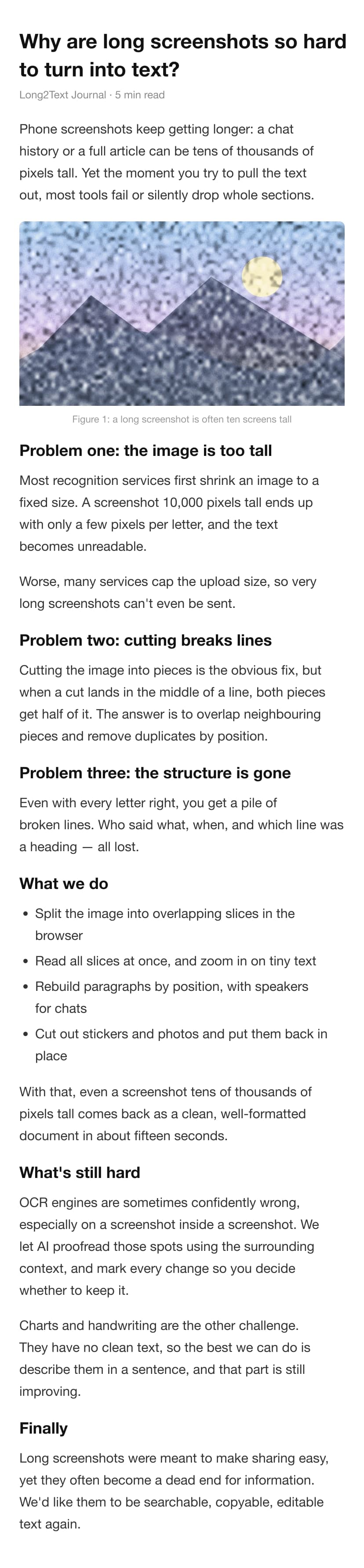
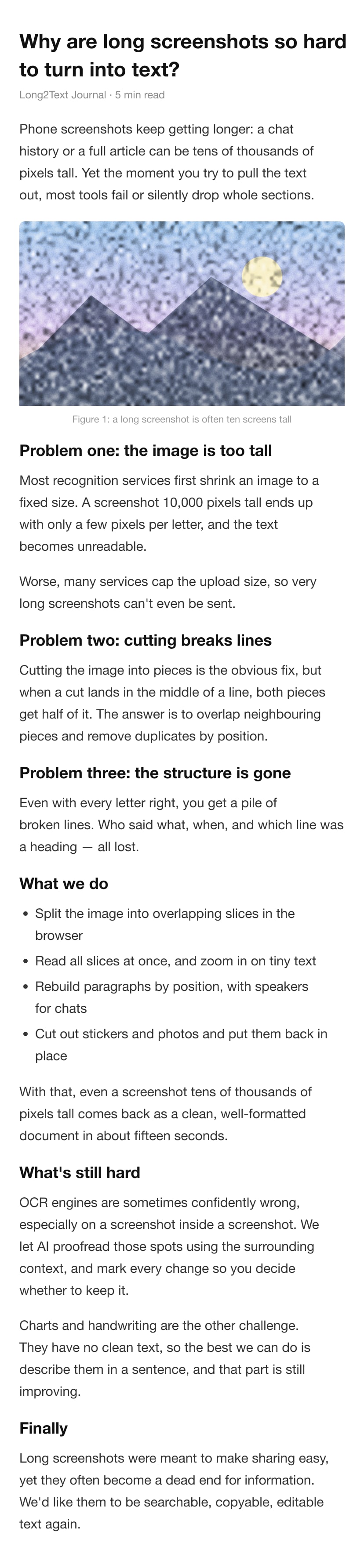
Rendered Markdown · full output
Why are long screenshots so hard
to turn into text?
Long2Text Journal . 5 min read
Phone screenshots keep getting longer: a chat history or a full article can be tens of thousands of pixels tall. Yet the moment you try to pull the text out, most tools fail or silently drop whole sections.
Figure 1: a long screenshot is often ten screens tall
Problem one: the image is too tall
Most recognition services first shrink an image to a fixed size. A screenshot 10,000 pixels tall ends up with only a few pixels per letter, and the text becomes unreadable.
Worse, many services cap the upload size, so very long screenshots can't even be sent.
Problem two: cutting breaks lines
Cutting the image into pieces is the obvious fix, but when a cut lands in the middle of a line, both pieces get half of it. The answer is to overlap neighbouring pieces and remove duplicates by position.
Problem three: the structure is gone
Even with every letter right, you get a pile of broken lines. Who said what, when, and which line was a heading - all lost.
What we do
Split the image into overlapping slices in the browser Read all slices at once, and zoom in on tiny text Rebuild paragraphs by position, with speakers for chats Cut out stickers and photos and put them back in place
With that, even a screenshot tens of thousands of pixels tall comes back as a clean, well-formatted document in about fifteen seconds.
What's still hard
OCR engines are sometimes confidently wrong, especially on a screenshot inside a screenshot. We let Al proofread those spots using the surrounding context, and mark every change so you decide whether to keep it.
Charts and handwriting are the other challenge. They have no clean text, so the best we can do is describe them in a sentence, and that part is still improving.
Finally
Long screenshots were meant to make sharing easy, yet they often become a dead end for information. We'd like them to be searchable, copyable, editable text again.
View complete Markdown source
## Why are long screenshots so hard
## to turn into text?
Long2Text Journal . 5 min read
Phone screenshots keep getting longer: a chat history or a full article can be tens of thousands of pixels tall. Yet the moment you try to pull the text out, most tools fail or silently drop whole sections.

Figure 1: a long screenshot is often ten screens tall
## Problem one: the image is too tall
Most recognition services first shrink an image to a fixed size. A screenshot 10,000 pixels tall ends up with only a few pixels per letter, and the text becomes unreadable.
Worse, many services cap the upload size, so very long screenshots can't even be sent.
## Problem two: cutting breaks lines
Cutting the image into pieces is the obvious fix, but when a cut lands in the middle of a line, both pieces get half of it. The answer is to overlap neighbouring pieces and remove duplicates by position.
## Problem three: the structure is gone
Even with every letter right, you get a pile of broken lines. Who said what, when, and which line was a heading - all lost.
## What we do
Split the image into overlapping slices in the browser Read all slices at once, and zoom in on tiny text Rebuild paragraphs by position, with speakers for chats Cut out stickers and photos and put them back in place
With that, even a screenshot tens of thousands of pixels tall comes back as a clean, well-formatted document in about fifteen seconds.
## What's still hard
OCR engines are sometimes confidently wrong, especially on a screenshot inside a screenshot. We let Al proofread those spots using the surrounding context, and mark every change so you decide whether to keep it.
Charts and handwriting are the other challenge. They have no clean text, so the best we can do is describe them in a sentence, and that part is still improving.
## Finally
Long screenshots were meant to make sharing easy, yet they often become a dead end for information. We'd like them to be searchable, copyable, editable text again.For Obsidian: unzip the download, then move the Markdown file and its images folder together into a note folder. The transcript and image links are unchanged apart from making the file paths portable. For a text-only workflow, use the .md download; picture descriptions come from the recorded demo.
How to convert your image
Choose a clear image
Upload a PNG, JPG or WebP at its original resolution: a screenshot, a long scrolling capture or another picture of text. Crop unrelated navigation and notifications. A readable source matters more than sharpening a tiny, compressed copy.
Review the document structure
After conversion, choose Article layout for article-style content. Check heading levels, paragraph breaks and list items. Markdown preserves structure, not the original page's fonts or exact visual layout.
Copy the text or keep the pictures
Use Copy Markdown for a text workflow. With pictures included, the download is a ZIP containing Markdown and an images folder. Keep those files together so relative image links continue to work.
What still needs a human check
- A heading wrapped over two lines may become two headings. Merge it if the original image shows one title.
- Complex tables, code indentation, formulas and multi-column layouts may need manual reconstruction. Do not assume a visually correct preview means every value is right.
- A URL displayed only as a link label cannot be recovered from the image. Add the source URL yourself when you have it.
Only upload material you have the right to share. Images are sent for OCR processing; this is not an offline tool. Read how your content is handled.
Questions about Markdown output
Which images work best?
Screenshots and long scrolling captures of articles, posts and documents are what Long2Text is built for. Other pictures of text are accepted as well; check those results more carefully, since the layout step is tuned for screen captures.
Is Markdown the same as a pixel-perfect copy?
No. Markdown represents content structure such as headings, paragraphs and lists. It does not reproduce the source's exact typography, colors or page layout.
Can I use the result in Obsidian?
Yes. Copy the Markdown into a note, or place the downloaded Markdown and its images folder together in your vault. Check the image paths if you move either afterwards.
Should I keep AI proofreading enabled?
It is optional. It can help with uncertain OCR text, but changes still need review. Compare important wording and numbers with the screenshot before using the document.